

Windows Telemetry is Microsoft’s diagnostic data collection system built into Windows. It automatically gathers data about your operating system, devices, and how Windows is functioning. The information is then sent to Microsoft to help improve the operating system.
Windows telemetry collects information such as hardware specifications, Windows version and build number, installed drivers, device reliability, application crash reports, performance metrics, Windows update status, security information, and optional diagnostic data.
This information is helpful for Microsoft to detect software bugs and crashes. It also identifies driver compatibility, improves Windows updates, and enhances system security.
For most modern PCs, the impact of telemetry on performance is minimal. However, most people think that disabling it will produce a huge performance improvement, but that is not always the case. Telemetry services use very little CPU when idle and consume only a small amount of RAM (usually tens of megabytes). It generates relatively little network traffic compared to Windows Update.
How does telemetry work?
Windows Telemetry is Microsoft’s system for collecting usage and diagnostic data from Windows devices and sending it to Microsoft. Windows does it to address hardware compatibility issues. Microsoft does it to fix hardware compatibility issues, identify crashes, security threats, and performance problems, etc.
Telemetry is implemented as a collection of background services, event logging, and scheduled tasks. The basic structure of Windows telemetry looks something like this.
Windows Components > Event Logging > Connected User Experience & Telemetry Services (DiagTrack) > Data Processing & Compression > Encryption (HTTPS/TLS) > Microsoft Servers > Analysis & Product Improvements.
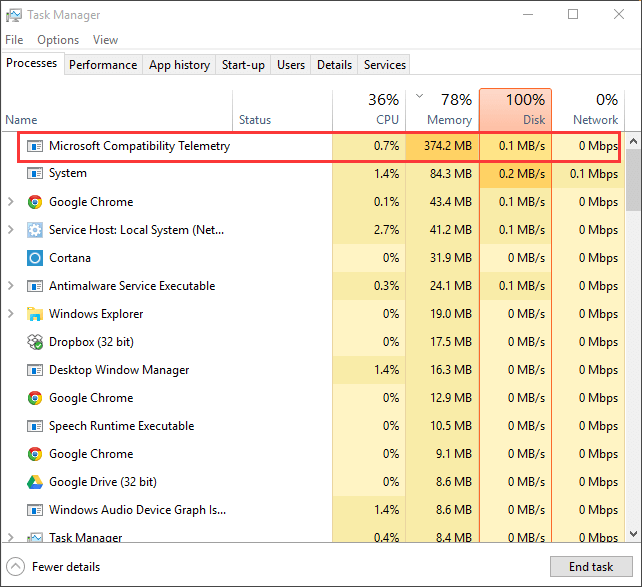
Basically, when something happens in Windows, an event may be generated. Things like A blue screen, application crash, Windows update installation, driver installation, boot time, memory usage, etc. The DiagTrack service collects data using the service name called DiagTrack. Its responsibilities include reading diagnostic events, managing upload schedules, and packing telemetry into reports.
Before Windows sends data, it organizes it into structured reports with information such as CPU/GPU Model, RAM amount, etc. Data about the OS, crashes, startup time, app launch time, and update installation duration is also collected and sent to Microsoft.
The data is sent over encrypted HTTPS connections to Microsoft endpoints. The uploads typically happen periodically and during major events such as crashes and during Windows updates.
What Data Does Windows Telemetry Collect?
Windows Telemetry collects information such as CPU, RAM, storage, device model, and firmware/BIOS version. The OS information is also collected, such as Windows edition/version/build, installed updates, and their success/failure. The driver versions, basic hardware capabilities, and battery status (laptops). It also collects minimal crash/hang/boot failure data needed for security and stability.
If we enable the diagnostic telemetry, some other things can be collected, such as
- Detailed crash dumps and memory snapshots (may include fragments of data in memory).
- App and feature usage: which apps/features you use, how often, and for how long.
- Performance metrics: boot/app launch times, CPU/GPU usage, disk I/O, network latency, and thermal/throttling events.
- Activity data (if those features are on): typing/inking data, location history, Edge browsing activity, and Cortana/voice logs.
How to Disable Windows Telemetry?
Use Settings (all editions, simplest).
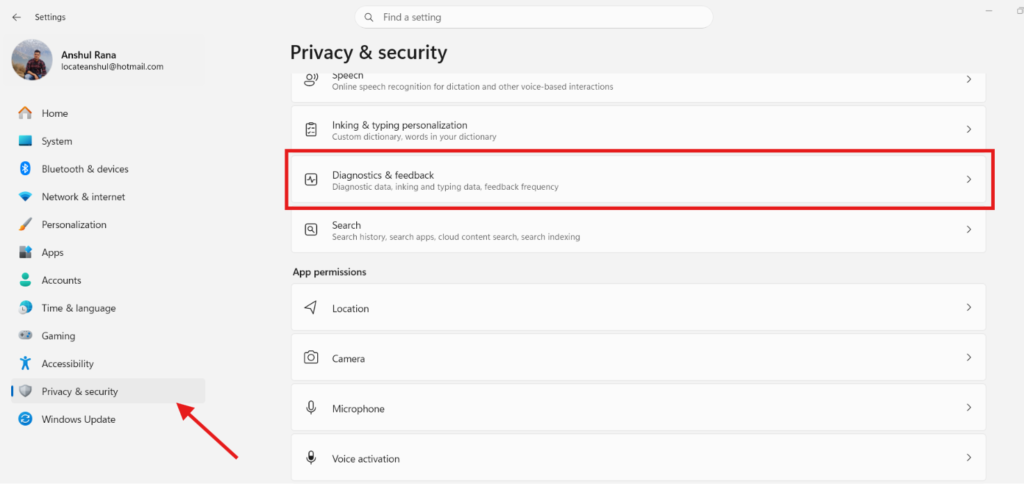
- Go to Settings → Privacy & Security → Diagnostics & feedback.
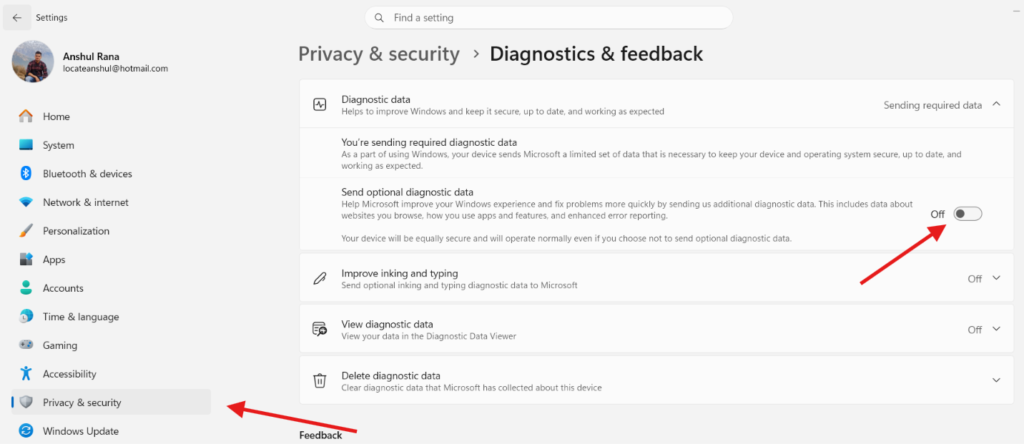
- Set diagnostic data to the minimum option your edition allows (e.g., “Send required diagnostic data” / “Security settings only”).
- Turn off optional items like “Improve inking & typing”, “Tailored experiences”, and “View diagnostic data” if you don’t want them.
Group Policy (Windows Pro / Enterprise / Education)
- Run
gpedit.msc.
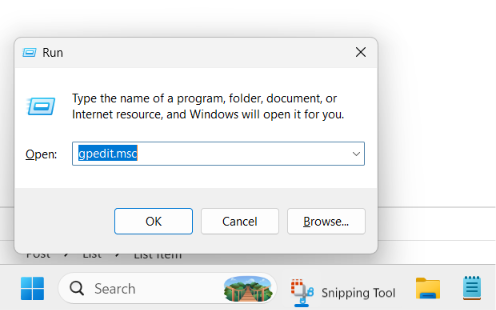
- Navigate to:
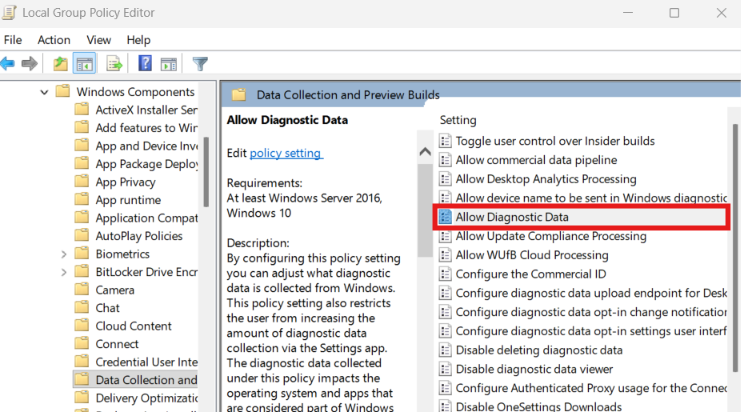
Computer Configuration → Administrative Templates → Windows Components → Data Collection and Preview Builds
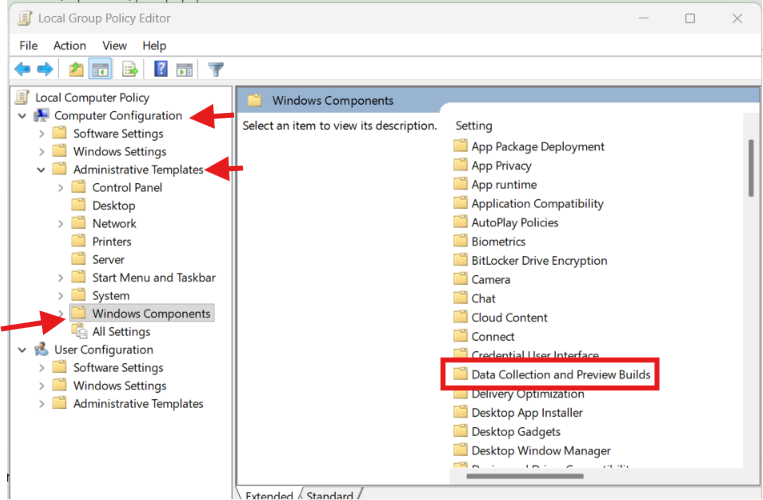
- Open “Allow Telemetry” (Win10) or “Allow Diagnostic Data” (Win11).
- Choose Diagnostic data off (Win11).
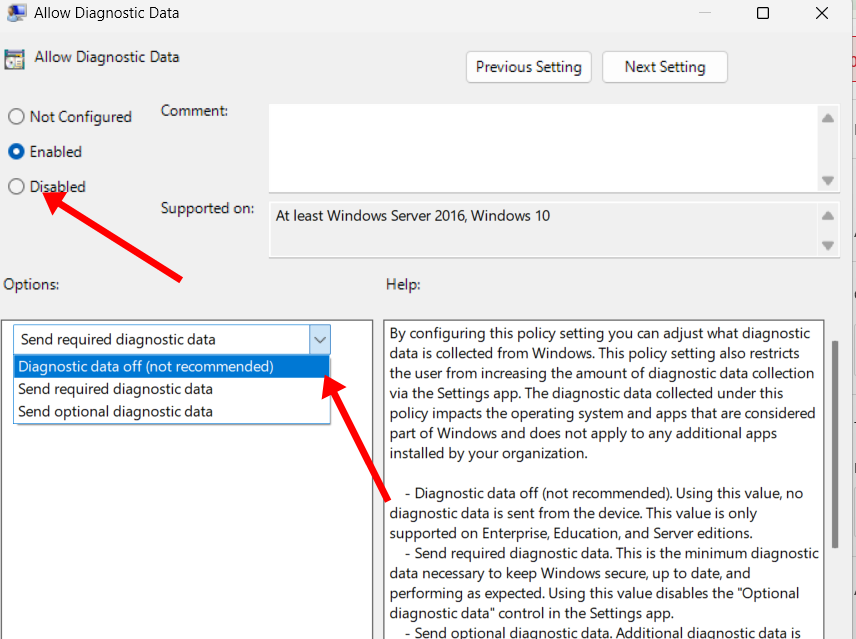
- Apply and reboot.
Disable Telemetry using HyperTweak Windows Optimizer and Debloater
If you do not want to go into Windows settings and make things much easier for you, you can simply use HyperTweak Optimizer for free. It will disable all the telemetry services in one click.
- Download the HyperTweak Optimizer.
- Install the program and run it.
- Go to the Tweaks section and toggle the Disable Telemetry option.
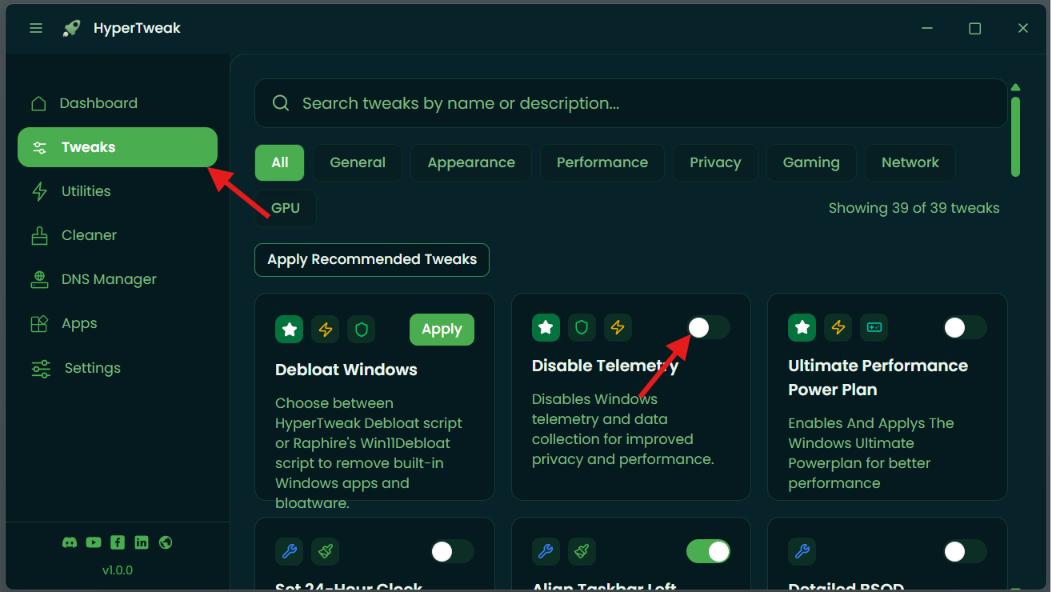
- Wait for a little and Telemetry will be disable in your computer completely.