
Bloatware is a serious issue for most of the Windows 11 users. The unnecessary features and programs ruin the experience for some people, while some people experience higher resource usage on the things they never use.
According to Windows 11, they are trying to make Windows 11 accessible and useful for everybody, and are trying to add universal programs. Some of the popular bloatware programs are Clipchamp, Feedback Hub, and 3D Viewer. However, you also get games like Candy Crush Saga, Microsoft Solitaire Collection, Disney Magic Kingdoms, and Bubble Witch 3 Saga.
What we can see from these programs is that Windows is trying to cater not only to kids and professionals, but also to some specific people like 3D modelers and video editors.
See, computers can be used for different things by different people, and everyone has their own needs. So ideally, an operating system should provide the surface-level functionality to the user rather than pre-installing programs.
But, Microsoft has some official partners like Dropbox, LinkedIn, King (Candy Crush Saga), and Disney, etc who pay them to add their programs to the platform.
Additionally, in the case of laptops, with specific brands like Dell and HP, you get antivirus trials from companies like McAfee and Norton.
It’s worth mentioning that there is no official Microsoft definition of bloatware. What one user considers unnecessary may be essential for another. For example, Xbox apps are valuable for gamers, while developers may regularly use Windows Terminal and Dev Home.
Why does Microsoft include so many apps?
Microsoft wants to give its users a ready-to-use experience. It wants the users to have a new Windows installation to feel complete from the moment they sign in. Instead of asking the users to download everything manually, they provide some apps for things like gaming, video editing, cloud storage, communication, media playback, news, and weather, etc.
Microsoft also wants to employ the methods of Apple and Google to make its users stay inside their ecosystem. This is the reason you see a lot of pre-installed apps are related to Microsoft services such as OneDrive, Microsoft 365, Edge, Outlook, Bing, Copilot, Xbox services, etc.
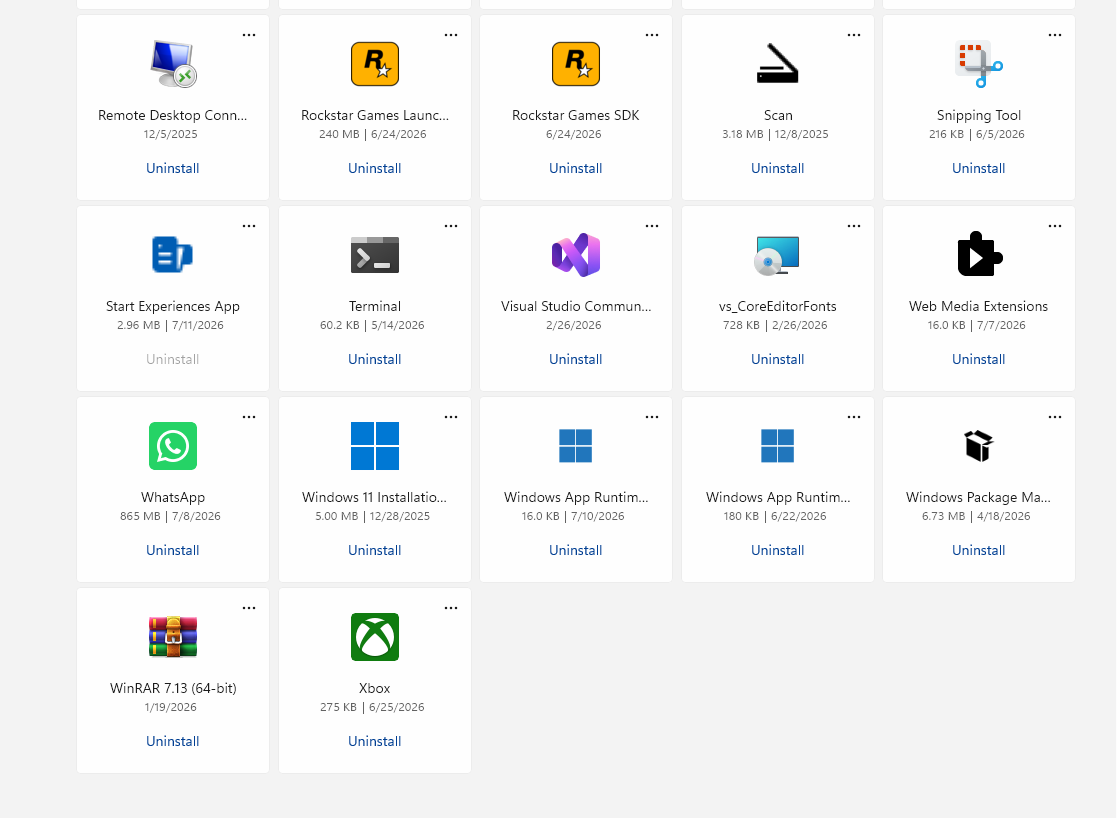
Windows 11 is installed on more than 1 billion computers all over the world by gamers, students, businesses, artists, developers, and casual home users. So, rather than creating dozens of different variants, Microsoft installs a broad set of applications that aim to satisfy the needs of different users.
As we discussed above, some bloatware is added by the PC manufacturers, especially in the case of laptops. It is called OEM bloatware and adds things like customer support tools, driver update utilities, hardware management software, and promotional offers.
Does bloatware actually slow down Windows?
Bloatware doesn’t necessarily affect your computer unless it is consuming the hardware resources that should be used for the task that you are actively doing. In fact, many of the Windows apps remain dormant until you launch them. For a program to actually slow down your computer, it should occupy space in your memory.
The performance issues start to appear when apps start automatically with Windows, run in the background, consume CPU/RAM continuously, display ads or notifications, and perform scheduled updates and synchronizations.
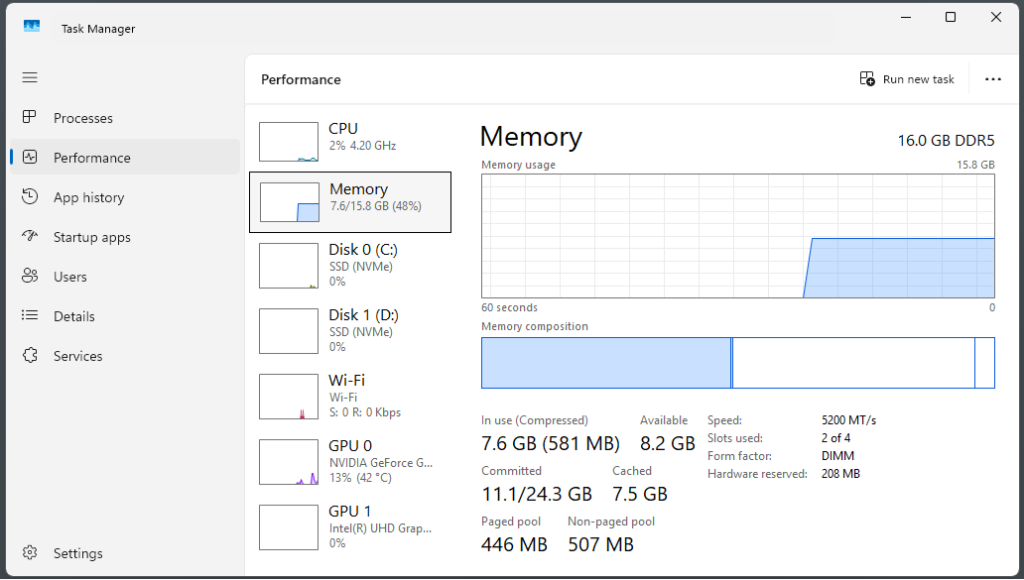
So, two computers with the same installed apps will perform differently depending on which background processes are active. For most modern PCs with SSDs and at least 16 GB of RAM, Microsoft’s built-in apps have a relatively small impact. However, in older computers or systems with limited and slower resources, removing these unnecessary apps and startup programs can noticeably improve responsiveness.
Which Windows apps are safe to remove?
It is generally safe to remove consumer apps, gaming apps, entertainment apps, and promotional apps. You can also remove News, Weather, Dev Home, Tips, Family, Solitaire Collection, Get Help, Clipchamps, and OneNote apps if you don’t use them. Basically, most of these apps are safe to remove and you don’t have to worry about breaking your computer. You can also easily automate it for free with Hypertweak software, which we are going to discuss later on.
However, you should never play around with apps like Windows Security (Microsoft Defender), File Explorer, Windows Update components, Settings, etc. Also, there are some Microsoft Store frameworks and runtime packages on which many applications rely. These are Microsoft.VCLibs, .NET Runtime, Microsoft.UI.Xaml, Visual C++ Runtime libraries. It is good not to touch them as well.
All the OEM apps, like shopping apps, antivirus trial versions, promotional software, and trial office software, can safely be removed.
A simple rule of thumb is that you can remove any standalone app you never use. Also, if it can be downloaded again, you can remove it for now. It should not be used by the core Windows function and doesn’t manage your PC’s hardware.
However, if the app seems to be used by Windows for its security, such as the Windows Security app, Windows Update, or other essential Windows features, you should not remove them.
How Much Performance Do You Actually Gain?
People think of debloating as something magical that will double their PC’s performance. But that is not always the case. While debloating makes your computer feel much cleaner and more responsive, the actual performance gains depend heavily on your hardware and how the removed apps were impacting the PC.
For most modern PCs, uninstalling a handful of apps will hardly make any difference in the actual performance. But there are some benefits that you achieve. Let’s talk about them.
The first obvious benefit is the storage space that you clear out. Even if the bloatware apps were not being actively used by the computer, they were always holding some space in the storage drive. Removing those apps will clear that space for you.
Unused apps that never run consume virtually no RAM. But some bloat apps might run in the background even without your permission. Some of those apps are OneDrive, Teams, Widgets, Xbox Game Bar, Copilot, etc. These apps might use megabytes of memory, but collectively, they can use enough resources to have a small impact on the performance.
For CPU usage, the performance impact from bloatware is hardly noticeable because it mostly stays in the idle state. But some apps might periodically wake up and consume some CPU resources. Some of those apps run for checking for updates, syncing cloud files, refresh widgest, collecting telemetry, and updating live content. So removing those apps will show you some difference in the overall CPU usage.
In my experience, the biggest benefit in startup time comes from removing bloatware. Because you get rid of all the extra load, the total size of the initial date reduces, and you get a much faster startup.
How to Remove Windows 11 Bloatware?
There are several ways to remove the bloatware from Windows 11, from beginners to advanced users. Let’s talk about them one by one.
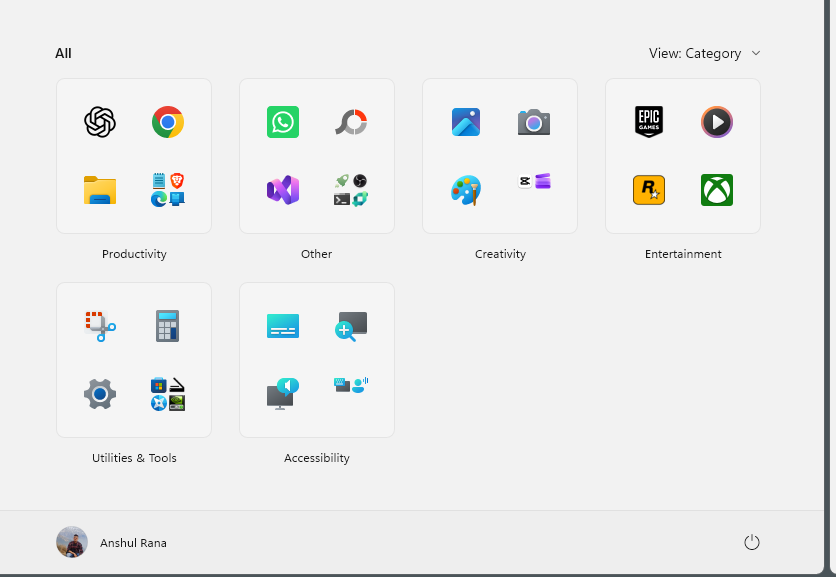
Method 1: Uninstall apps from the startup Menu (One by one)
- Open the Start Menu
- Locate the app you want to remove
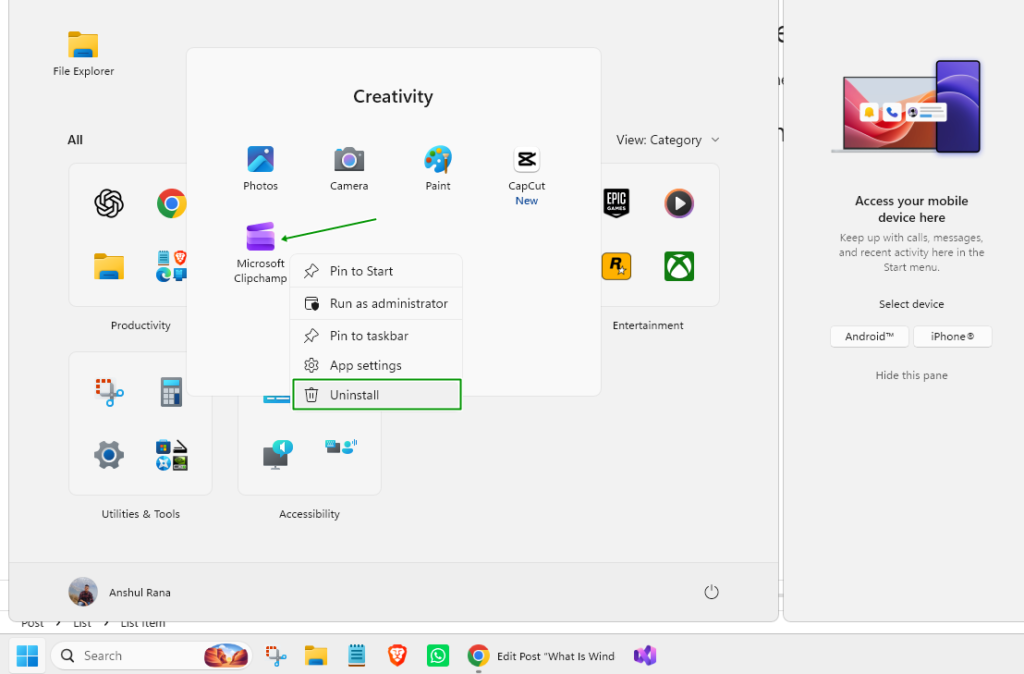
3. Give your confirmation to uninstall the app.
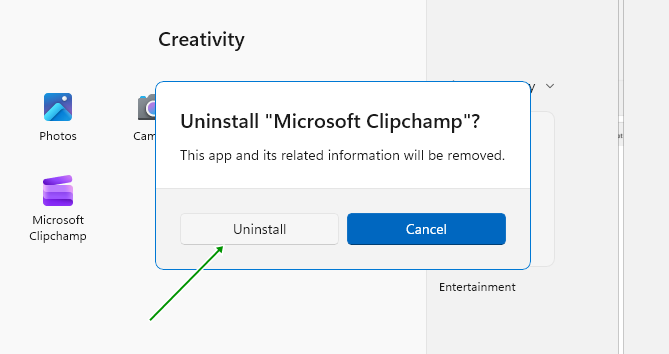
Method 2: Remove apps from settings
- Press Windows + I
- Inside the Settings menu, go to Apps and then click Installed Apps
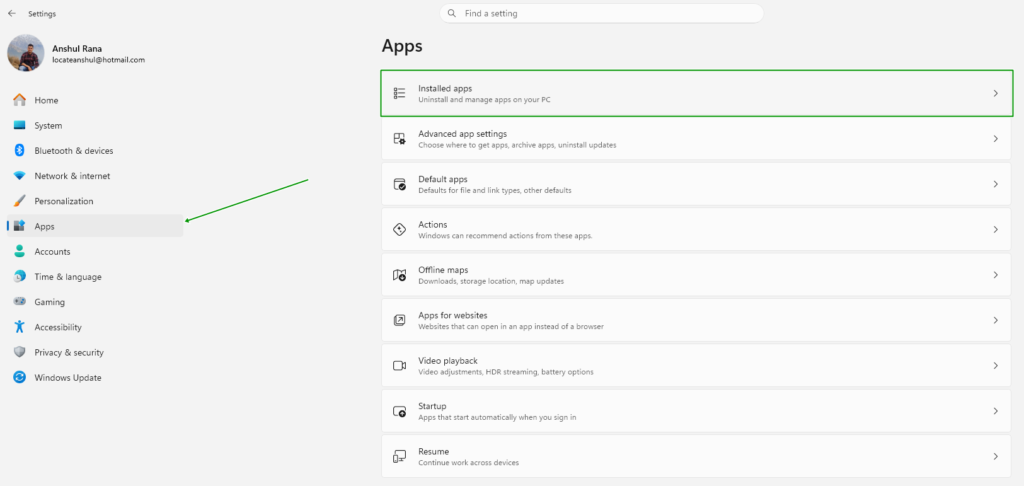
3. Locate the app and click the three dots. Click uninstall and proceed.
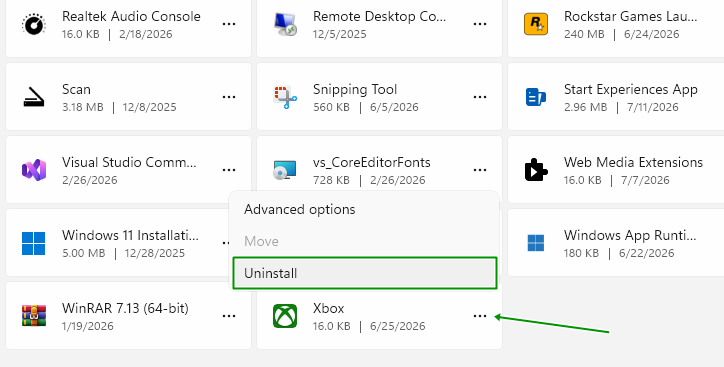
Method 3: Use HyperTweak Debloater (Easy, Fast, and Free)
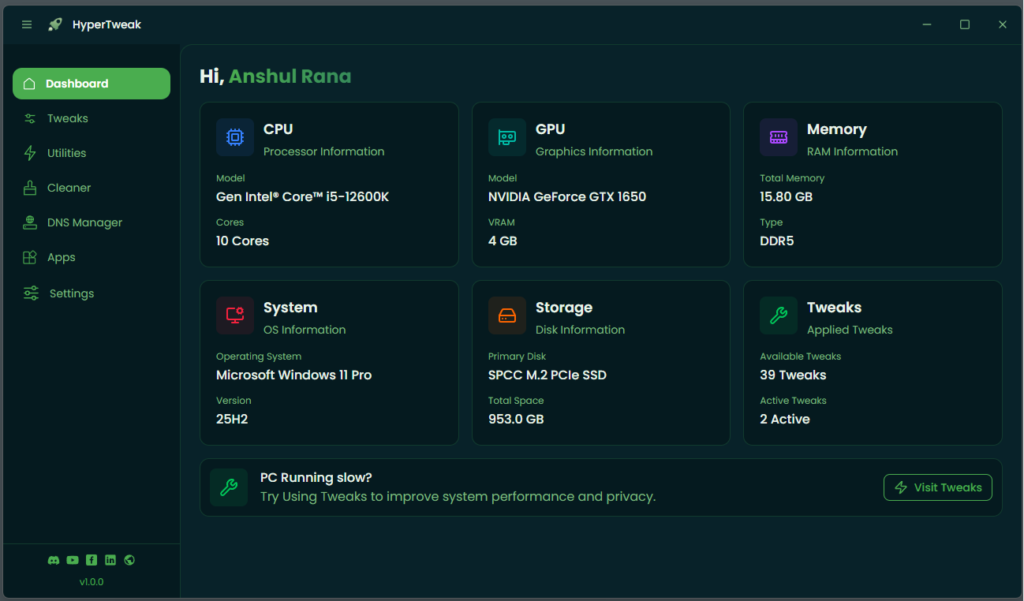
HyperTweak is a free Windows 11 Optimizer and Debloater. It removes all the bloatware in one click without causing any issues with your computer. Let’s see how you do it.
- Download HyperTweak from the official website.
- Install the program on your computer and open it
- Go to the Tweaks tab and click Apply in the Debloat Windows section.
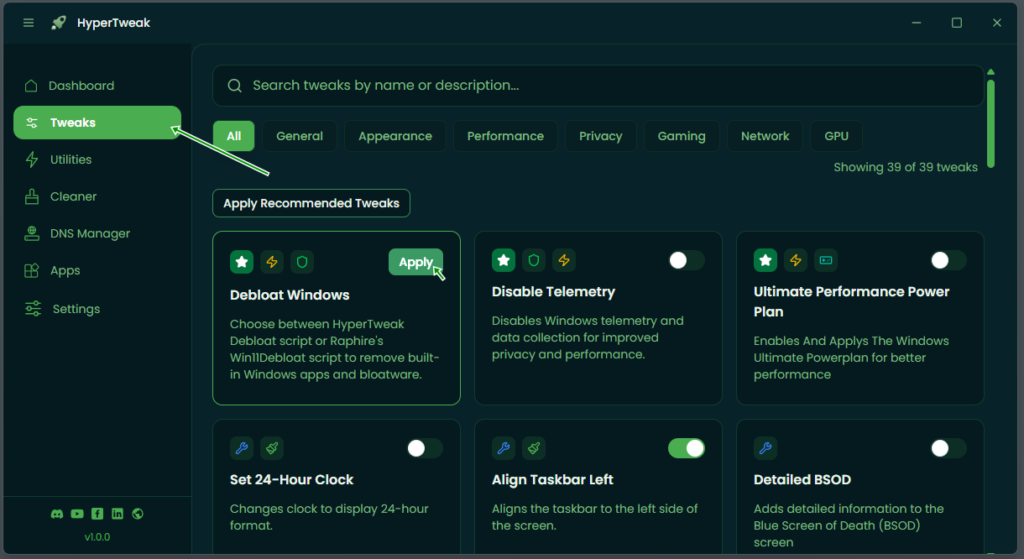
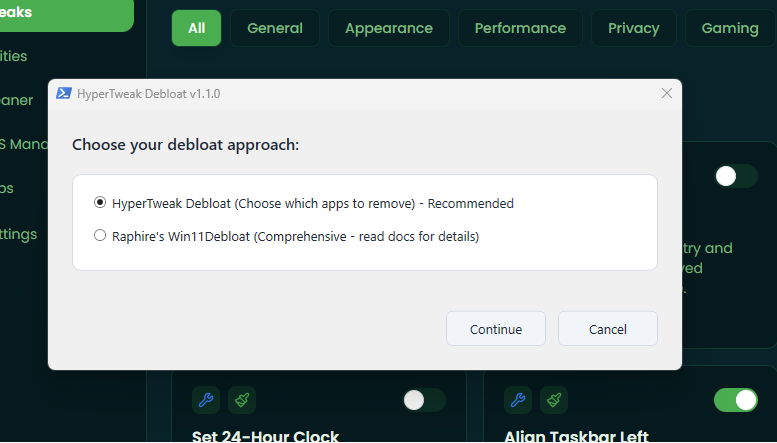
- Choose the HyperTweak Debloater Script and proceed for the debloating process.
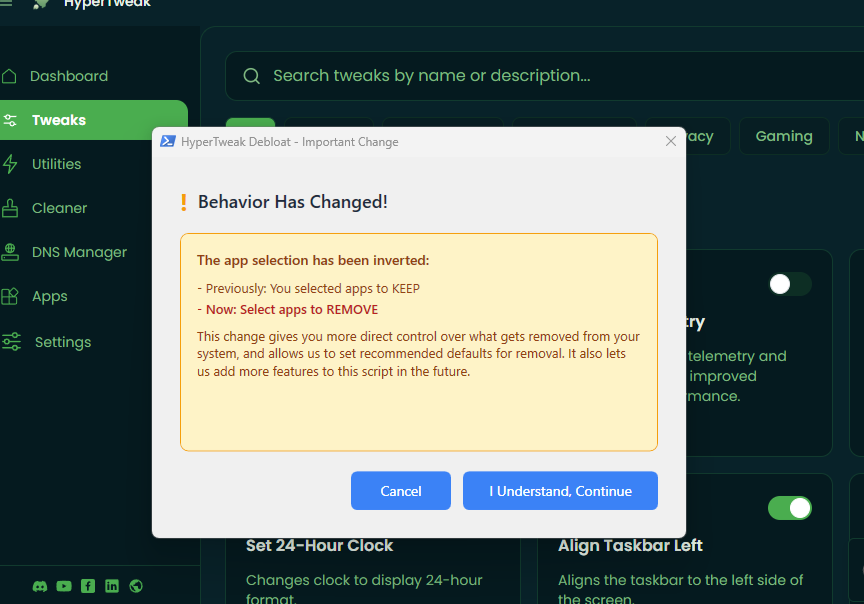
- Confirm the next pop-up.
- Choose the apps to remove and click Start Debloat.
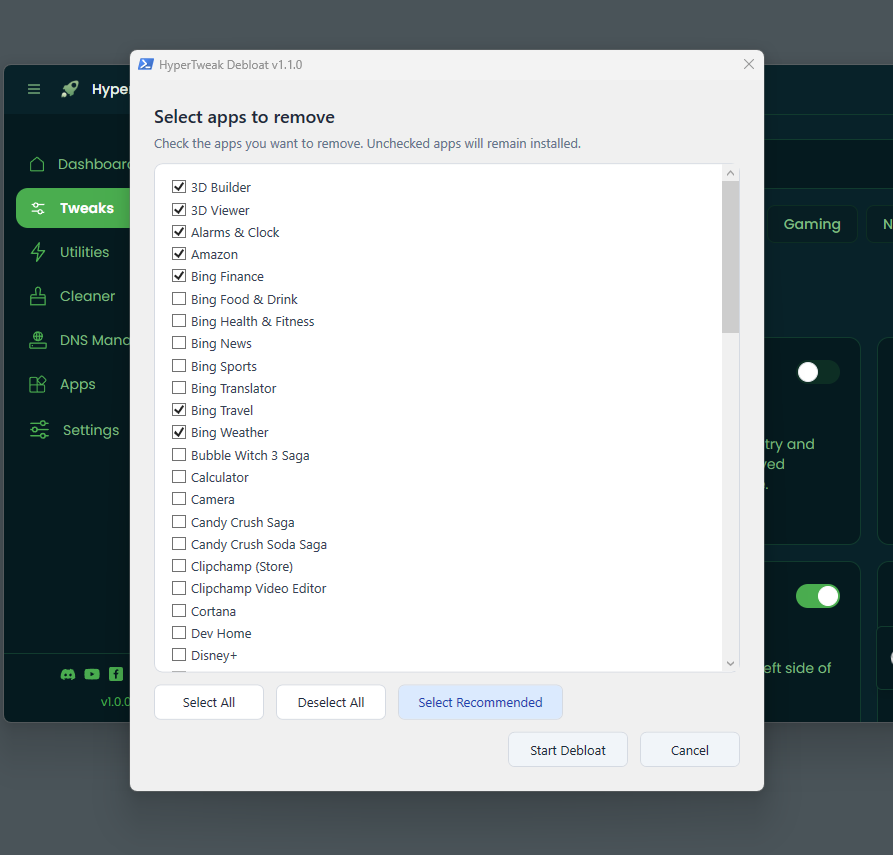
Wait for a minute or less and all your selected apps will be removed from your computer.
Debloating Windows can be a great way to enhance your system performance, especially if it has low resources and the bloat is pretty heavy. Several other technical ways are using Windows PowerShell or WinGet, but they are not suitable for most regular users. However, we can talk about them in some other articles. For now, these manual as well as the script methods will work the best for you.